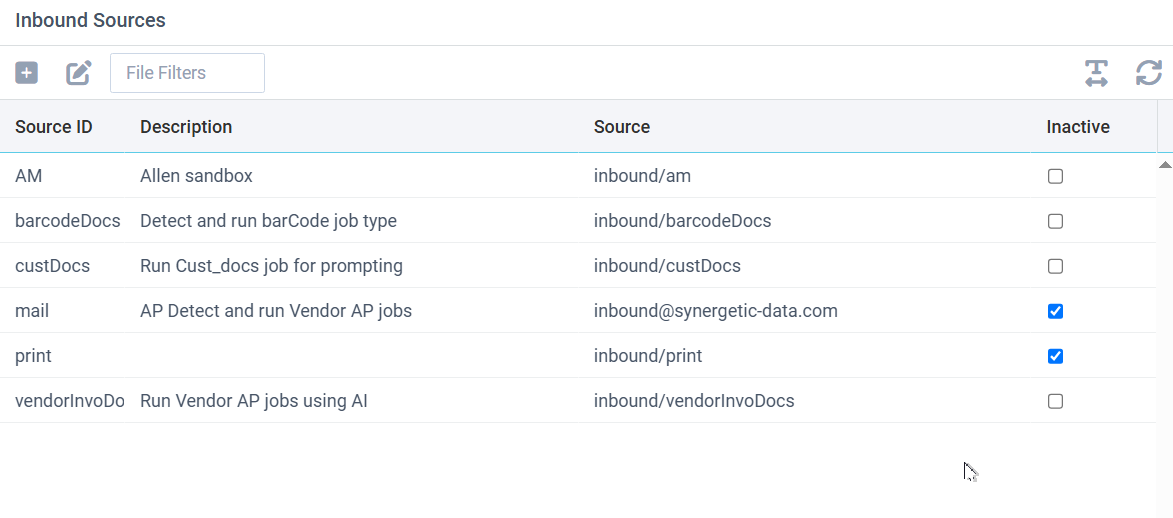
An inbound source is a location where documents can arrive into the UnForm system. There are two types, directory and email. When files or attachments are received, UnForm monitor programs will retrieve them and either place them in an inbound library for Image Manager or IDP processing, or run them as print jobs via the rpq submission directory. There can be multiple monitors running, one for path sources, and one for each mail source.
Inbound sources automatically create inbound source libraries, where arriving documents are stored and then configured actions are performed. Data in these libraries is managed by the inbound source monitors, Image Manager jobs and users, or IDP jobs and users.
An inbound source can also be used to execute jobs that run through an UnForm rule set, often print jobs but actually for any purpose that a rule set can perform. This provides an integration technique that doesn't require execution of an UnForm client.
The UnForm server will detect changes to sources and will restart monitors if necessary.
To add a new source, click the plus icon. To edit a source, double-click the source or select a row and click the edit/pencil icon.
Editing a Source
Each source has a unique Source ID and an optional description.
A source can be disabled by checking the Source is inactive checkbox. Such sources will no longer receive documents.
Any user that is an Image Manager or IDP user can be granted access to a source. Note if an admin user is given access to Image Manager or IDP, they are automatically given access to all sources.
Type determines what type of source is being configured. The input fields change based on the type. For a monitored path, enter the directory to be monitored in the Source field. For email sources, fill in the email access information, including IMAP server information, mailbox, and login. Through mailbox aliasing, or mail list configuration, a single mailbox can deliver documents to alternate inbound sources. To do so, the alias or list address should contain +sourceid or .sourceid in the address (case-insensitive).
Filter is a list of wildcards indicating what types of files will be extracted from the source.
No OCR is a setting that determines if UnForm will utilize an internal Tesseract OCR engine when no text layer is found in the incoming images. OCR is necessary for some types of Image Manager jobs, but generating it is time consuming, so if files coming into this source do not typically require it, the processing can be skipped. An operator can run OCR processing later if needed. Note that incoming files with existing text, such as ERP-generated PDF files, OCR is enabled regardless, as it is not time consuming.
OCR Service is visible in sites that have subscribed to the UnForm OCR Service, an AI-based OCR processing service. If checked, when images require OCR processing in this inbound source, that service will be used rather than a local OCR engine.
If the service is enabled, you can also choose to "Upload color images when possible". If checked, and a color image is imported into the inbound source, the color image is uploaded to the OCR service. This can improve results if the images have color backgrounds. However, since color images are much larger than black and white images, this increases the network resources used to upload the image pages.
It is possible to determine page rotation from the OCR data returned by the service. A checkbox enables automatic rotation of pages to present their text left-to-right and top-to-bottom. Note enabling this option can increase service cost, as image pages that require rotation are processed a second time through the service. Note that the submission of rotated images uses 1-bit images regardless of the color option selection above. When pages are rotated for resubmission, mutool is used to rotate the PDF pages unless a 'rotate=magick' setting is applied in the [im] section of uf110d.ini.
Note: the OCR service requires the Perl client to be executed to be compatible with the service servers, which run UnForm 10.1. Windows users must have Perl installed and the perl= line configured in uf110c.ini.
File Handling Options determines what to do with the files as they arrive in the source.
•Import only means the files will be stored in the inbound source library, but no action is taken. The files are available in Image Manager for manual handling.
•Detect and run jobs of type means the document will be stored in the source library, and Image Manager job detection and processing will be performed. Optionally, only a certain type of Image Manager job will be detected and run.
•Assign and run a job enables a specific Image Manager job to be run for each document that arrives in the source.
•Run IDP job will run a specific IDP definition for each document that arrives in the source.
•Run as print job will run an UnForm command line to submit incoming documents to an UnForm rule file and optionally, a named rule set. This is typically used to perform printing, but since rule sets are very flexible, it can be used for other purposes as well.
Once one of these handling options is selected, an additional input field is used to specify the details.
When a print action is specified, the print job automatically receives some parameters. These parameters are accessed with a prm("@name") function in expressions and code blocks. The parameters are:
•For path sources, @source (source id) and @filename (basename of file)
•For email sources, @source (source id), @from (from email), @to (to email), @subject (email subject line), @emlfile (rfc822 email content file, usable by the mailmessage object's parsefile method)
Email Sources with Modern (OAuth2) Authentication
UnForm supports XAUTH2 authentication with an IMAP server, as well as traditional LOGIN authentication. This requires configuring a dedicated user record with its Notes field filled in with text lines provided by the publisher through a registration procedure at https://unform.com/support/oauthcode.html. The user record can be disabled to prevent its use other than as a secure storage location for the authentication data.
After registering an application with your mail provider, such as the App Registration pages at Microsoft 365's Azure Active Directory, you can visit the above web page to configure, authorize, and receive the tokens required for UnForm to perform this type of authentication. Instructions are found at that page.
Once a user has been configured with the proper lines in its Notes field, you can specify which user contains the token information with a specially formatted password: oauth:userid. For example, if you set up a user "z_imap", use the password "oauth:z_imap" in the email configuration for the source. That format of password triggers the XAUTH2 authentication method.
The notes field should look something like this (lines here are truncated):
cid=2991095c-2b2a-4...
cs=Z2F8Q~5dZSM4v...
ep=https://login.microsoftonline.com/ab44...
tk=LCJhbGciOiJSUzI1NiIsIng1dCI6ImpT...
rf=0.ARIAlplEqxeM...
For Microsoft 365 users, here are more detailed instructions.
Note that if you recreate the Oauth application registration, you should delete the ufoauth.dat file after updating the user record, as it will contain cached refresh keys that will no longer be valid.