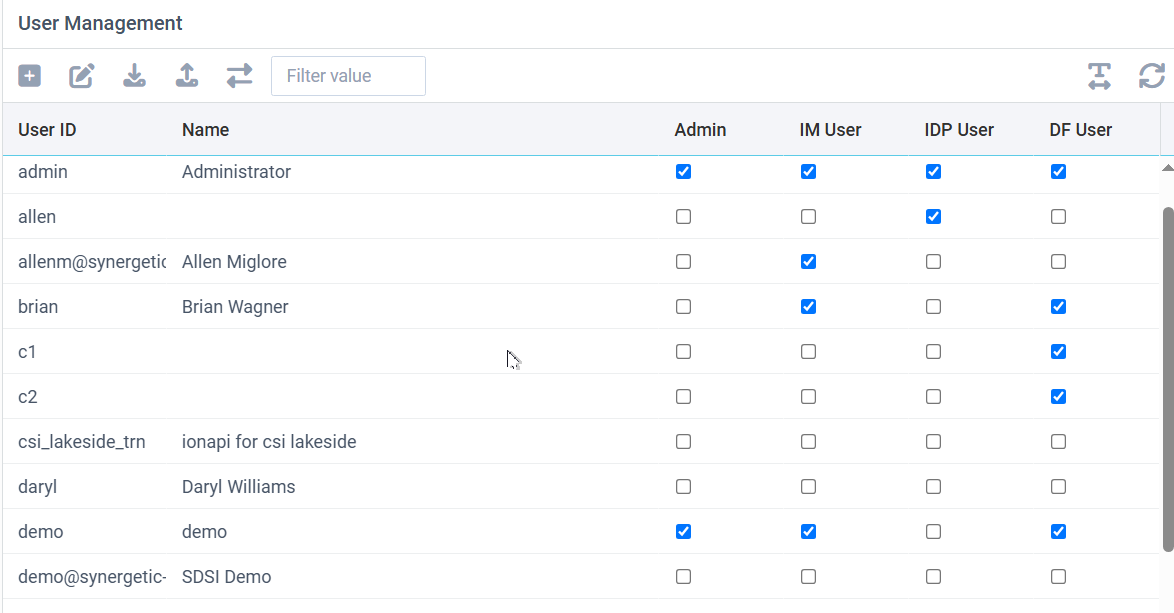
The Internal Users window provides facilities to add and edit user details, including library access, group membership, and certain access permissions.
Internal users differ from External users in that Internal users are those that work within the organization that uses the UnForm server environment, whereas External Users are third party users that login and should only see documents that pertain to them. Internal users are granted certain permissions to whole libraries. External users are granted read only permissions only to their own documents, as determined by an Entity ID.
To add a new user, click the plus icon. To edit a user, double-click the user or select a row and click the edit/pencil icon.
You can also export and import users via CSV files, using the download and upload buttons. Guidance for importing is provided on screen.
The synchronization button is used to perform LDAP/Active Directory synchronization.
Editing a User
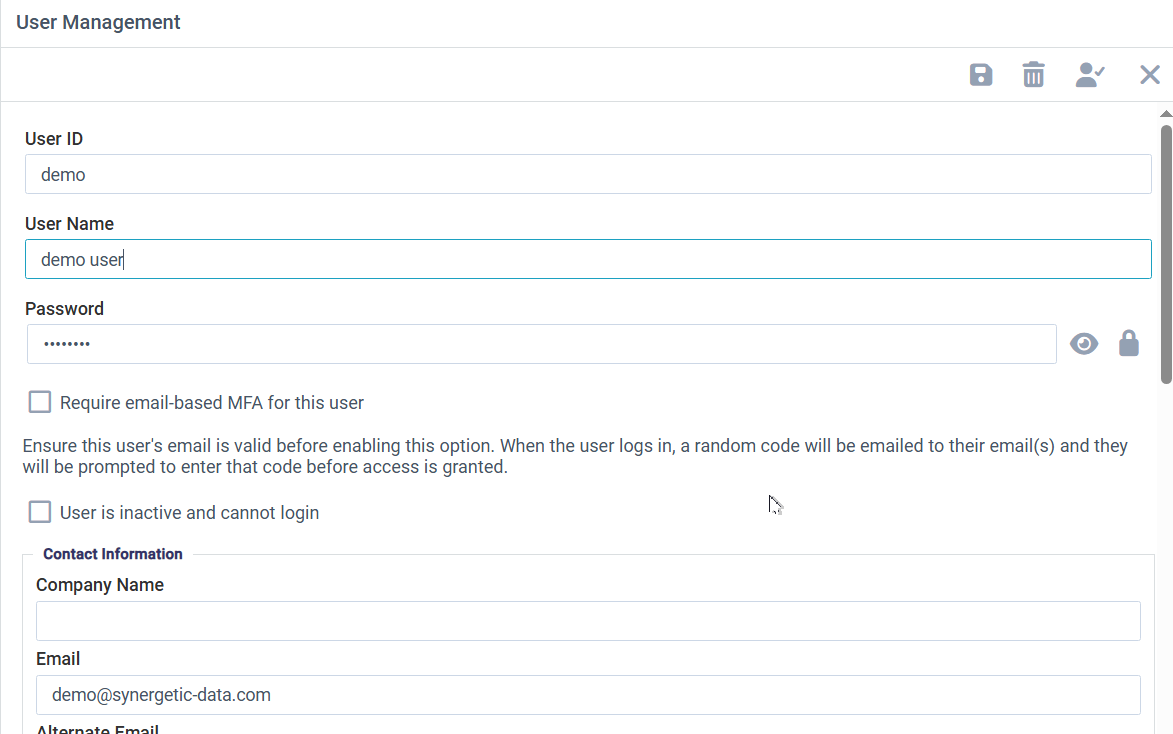
The user ID and password fields define how a user will login to UnForm. Note that when users are defined via a Open ID Connect (ODIC) service provider, or via LDAP/Active Directory synchronization, you do not maintain the password here as authentication is performed by that third party.
A password complexity level is defined in the server configuration, and a Generate button is provided to generate a random password that meets the configured complexity level. User records can't be saved if the password doesn't meet the complexity level.
A user can be required to use 2FA, where a temporary code is emailed to them after the user/password entry and must be entered to gain access. If you set this up for a user, be sure that the user has a valid email address defined, and that emailing is configured and fully tested in the UnForm configuration.
Module Permissions
•User is an admin enables access to every library and feature except for Image Manager, IDP, and DocFlow
•User can use Image Manager enables the user to use the Image Manager module
•User can use IDP Module enables the user to use the IDP Documents module
•User can use DocFlow enables the user to use the DocFlow module
Additional Permissions (for non-admin users)
•Allow Design Tool access enables a user to use the Design Tool.
•Allow user to edit Image Manager job definitions or IDP definitions
•Allow user to edit DocFlow definitions and roles
•Allow user to re-assign documents in Image Manager or IDP to other users
Group membership provides a selector dropdown to assign the user to one or more groups.
Library Access
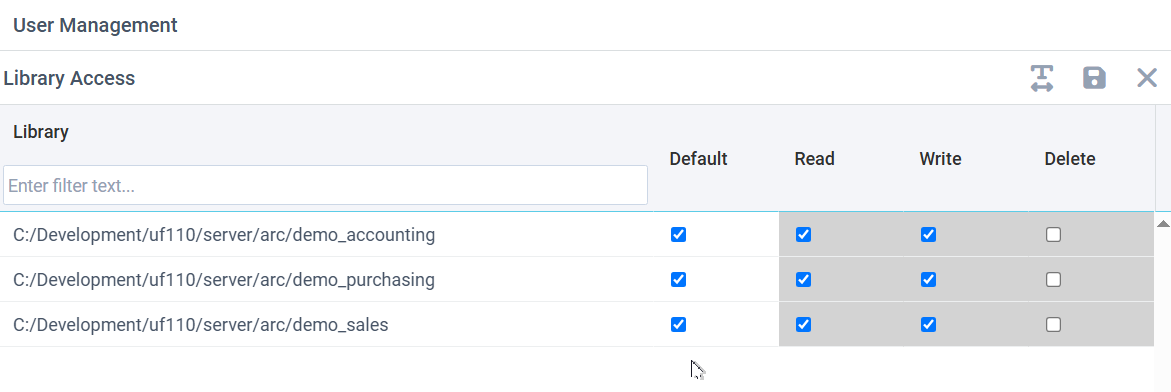
From the user edit screen, use the checked-user icon to define explicit access to libraries for this user. Note it is usually more convenient to define group-based access, but in some cases you may prefer to define access at a user level. To define specific library access, uncheck the Default column and then check the read, write, or delete options the user should have. Be sure to press the Save button to save work.