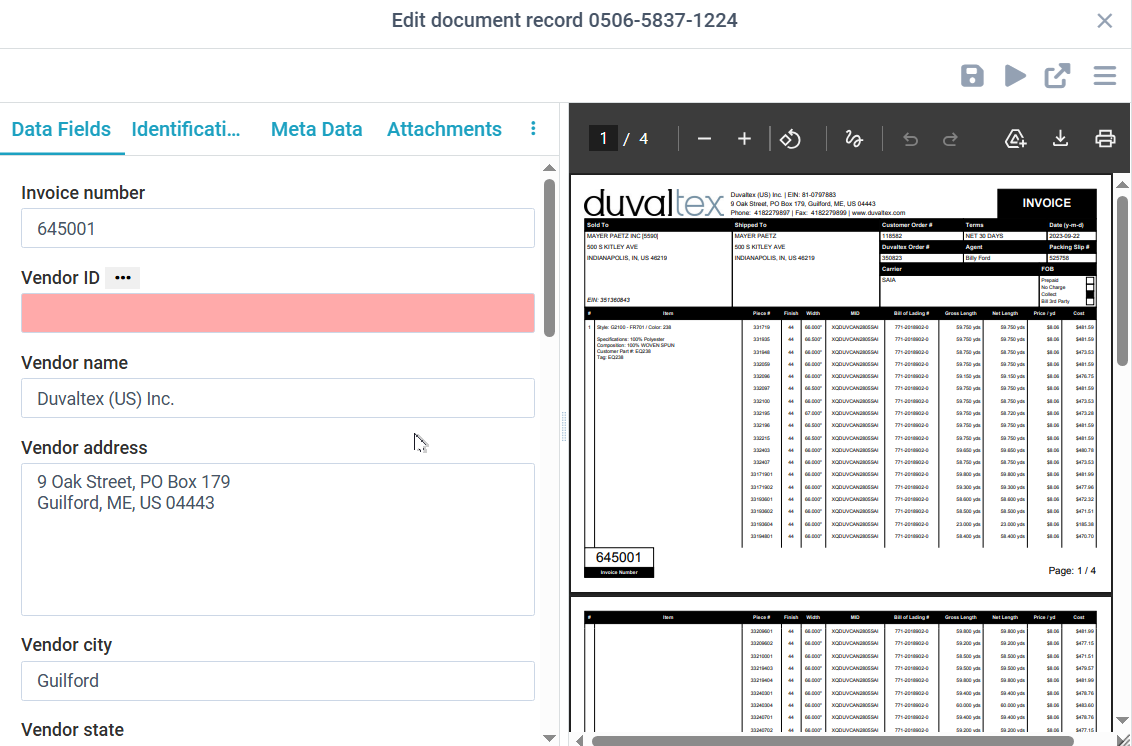
When you double-click or select and edit a document, a document editing window appears.
The editor toolbar offers buttons to perform actions:
•Save saves any editing to the server, which re-runs validation logic on the document and re-displays it.
•Run to re-run the job to recalculate all the fields from the AI-generated data. This is useful if the job definition was changed or you want to restart editing.
•Popout to open the image view in another window, which can be helpful on large monitors.
•Other Options
oReprocess with AI, optionally with a different AI model
oMove this document to another source for different processing
oDelete this document from the inbound source library, in cases where an invalid document was sent to it.
The editor provides a view of the document and several tabs:
•Data Fields - displays the data fields named in the IDP definition, in the order they are defined in the definition. Tables are offered as a button that opens a grid editor. Lookups are run by clicking an ellipses button next to the field header. Any fields that don't pass validation will be displayed in red with a hover tip showing an error message.
•Identification - the fields used to identify and index this document in the archive repository are offered on this tab. The fields on this tab are usually calculated by the definition, but the user can edit them as needed.
•Meta data - information from the inbound source, such as file names or email addresses and subjects
•Attachments - if the IDP definition is designed to understand document attachments, those attachments are displayed in this tab. This is often when a scan batch is scanned with primary/header documents and associated documents that follow each primary.
•Log - a log of the last job run, showing how data field values were assigned.