The IDP Documents window is used to manage documents that reside in an inbound source that has been configured to run an IDP definition. Once that definition runs, any documents that are not automatically transferred to archive and post-processing remain in the inbound source and are available to IDP users to handle.
Documents are managed through table selections and toolbar buttons. Some buttons work at any time, others require one, or at least one, selected document.
Documents for a given inbound source are presented in two lists: those assigned to the user, and those that are not assigned to any user. Users typically self-assign documents from the second queue, though user assignment can be performed by admins (or uses granted assignment permissions) or can be automated though scripting.
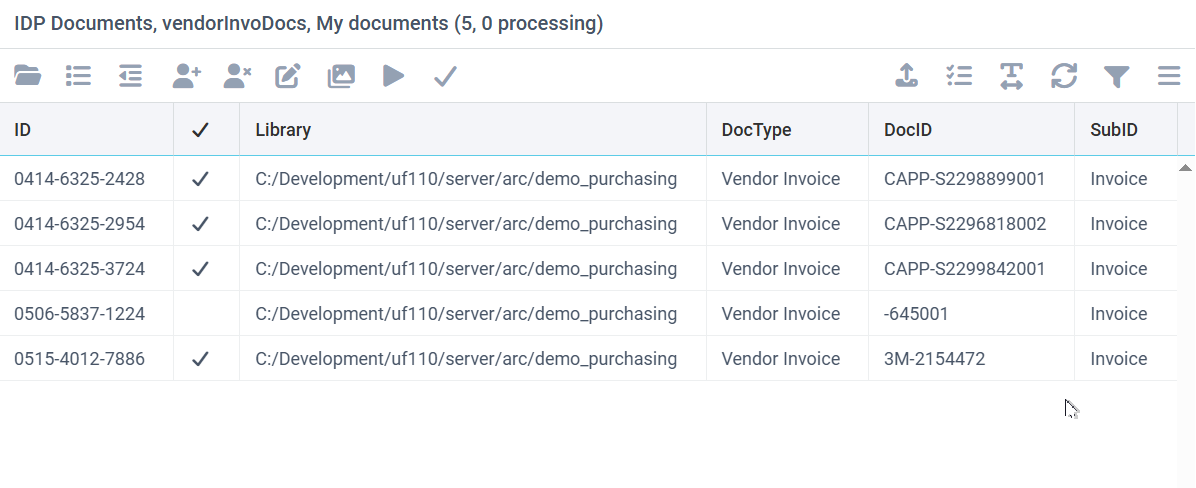
Selecting Documents
Select one document by clicking it, then select more using shift-click to choose a range, or control-click to chose individual documents. There is also a checked-list toolbar button used to select standard groups, such as those that are ready for transfer.
Toolbar Buttons
•Source selection - the open folder button enables selection of different inbound sources.
•User's documents - the bullet list button shows documents assigned to the current user, so that only that user can edit them.
•Unassigned documents - the next button shows documents that are not assigned to a user.
•Assign selected - The user-plus button is used to assign documents selected from the unassigned list to themselves
•Unassign selected - the user-x button is used to move selected documents back to the unassigned queue.
•Edit the selected document - the pencil button
•View page images - the image button presents the pages of the selected document as thumbnail images. The user can rotate pages if needed, or split the document in two at a certain page, in cases where the AI engine did not provide document splitting information. Once split, the two documents are reprocessed with AI.
•Re-run the job - the run button, will re-calculate data for the selected documents from the original AI-extracted data. This can be useful if the job definition was updated or incorrect edits have been made and you want to start over.
•Transfer - the checkbox button, will transfer any selected documents that have no validation errors to archive and post-processing.
•Upload - the upload button, will upload a file via the browser into the inbound source and start processing it with AI.
•Adjust columns, the T button, will adjust column widths to match their data.
•Refresh - the recycle button, will sync the document list with data on the server. Use this to see if new documents have been processed in the source.
•Other options - the 3-bar menu, offers additional options
oReprocess the selected documents with AI, to use a different AI model or utilize an updated job definition.
oMove the documents to a different inbound source, where they will be processed using that source's defined action.
oMerge the selected documents into one and reprocess.
oDelete the selected documents from the inbound source, in cases where an invalid document was sent to it.
oAssign documents to other users or the unassigned queue, available to admin users or those with assignment permission.