This tab is where all the data fields required by the definition are defined. To determine the fields you need, consider both archive indexing and retrieval needs (what data will users need to locate documents in the future) and also the data required to perform post-processing work, such as generating transaction records in an ERP system. This set of data fields is the minimum you should capture.
Not all data fields will come from the AI engine. Some require local data, and there are often automated ways to collect that. For example, in the example below, there is a Vendor ID field, representing the vendor's record in an ERP system, that will not be present in the data located by the AI engine in the documents. However, vendor name, or a vendor website, will be present in the documents, and code can be devised to re-use stored information from previously processed invoices from a given vendor. In that way, once a vendor has been processed though the system, subsequent invoices from that vendor can have the Vendor ID automatically calculated.
The Data Fields tab displays a list of field definitions, along with a side panel where each field's attributes can be specified. There is a field-level toolbar used to add new data fields, tables, and columns, as well as remove unneeded fields and move their order. The order of the field determines the order they are presented to users in IDP Documents.
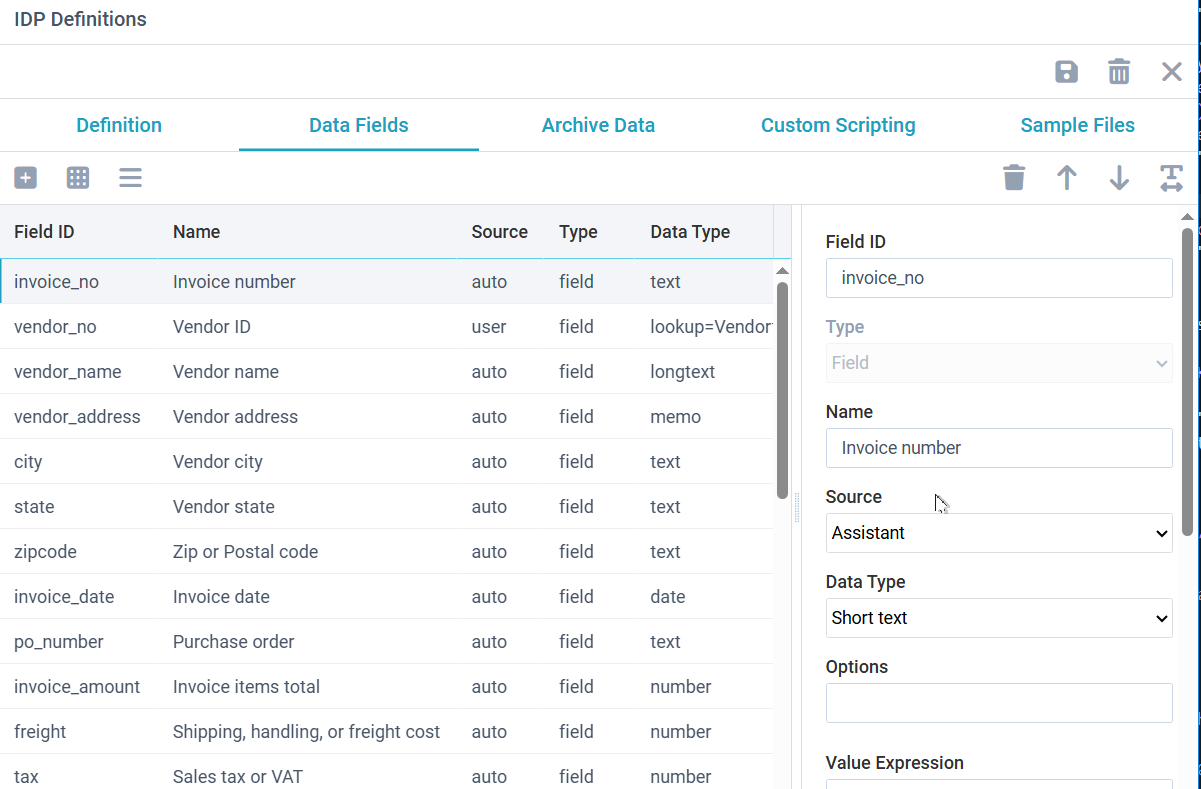
Field ID is the short name of the field. It becomes an XML element name when data is captured and stored, so must only contain letters, digits, and underscores. It should be descriptive since it also provides context hints to the AI engine, but concise for XML brevity.
Type specifies if this field as a data element, a table, or a column in a table. The toolbar option selected to add the field determines this value, so it is not editable.
Table fields must be followed by column fields in order to build a request for line item detail. The table will be composed of each column type that follows it, until the next table or non-column field. The columns will be ordered left to right when the table is viewed.
Field Name is used to describe the data to be extracted for this field. It provides a more industry standard, descriptive term for the data, and also serves as a heading when editing document data.
Source identifies if this data comes from the AI engine or is locally entered by the user (or calculated for the user).
Data Type defines the type of data expected, such as simple or multi-line text, numbers, or dates. It can also define if this field should offer a predefined lookup, such as something the user can lookup in an ERP table or out of a CSV file, or should be selected from a fixed range of selections such as a radio button or selector list. Several of these types only apply to locally entered data, but the text, date, or number values provide hints to the AI engine for what type of data to extract.
Options, some data types require additional information. Instructions are provided on screen based on the data type.
Validation is a critical field. Validations are performed on the data as extracted or entered and are used to confirm its validity. There are standard validations and it is also possible to create custom validations that are specific to the needs of the local installation. They can be as simple as ensuring a number is not 0, or a value simply exists, or can be as complicated as verifying two table columns add up to a valid third column, or verifying a transaction number exists in an ERP system.
When users edit and save a document in IDP Documents, validations are always performed. A document that doesn't pass all defined validations cannot be transferred out of IDP Documents and into archiving and post processing.
Grid Column, if checked, indicates this field should be presented in the IDP Documents table as a filterable and sortable column. Use this to make the list more useful to IDP users.
Instructions provides a text field to add any additional field-level instructions to the AI engine. Examples might include extra formatting details, or how this field might relate to other fields being captured, or even a calculation that the engine should perform. One example might be to calculate a due date based on an invoice data and terms code.